
TemplogONE Temperature Recorder
TechnIcal SpecIfIcatIons
| Model: | TemplogONE |
|---|---|
| Temperature measurement range: | Between -20 and +70°C |
| Temperature accuracy: | ±0.1°C |
| Temperature resolutIon: | ±0.1°C |
| Reporting type: | AnalysIs wIth the Program |
| Memory capacIty: | 5000 |
| Alarm status: | 1 bottom 1 top for each poInt (total 2) |
| Alarm dIsplay wiIh Led: | Yes |
| End of shIpment mark: | Yes |
| SubmIttIng data to the WEB: | Yes |
| RegIstratIon perIod: | 3-5-7-10-15-20-30-45-60-90 DAY |
| Storage lIfe: | 12 months |
| DImensIons: | 75mm X 34 mm X 8mm |
| WeIght: | 15gr. |
| Box: | ABS |
| PackagIng | 50 pIeces |
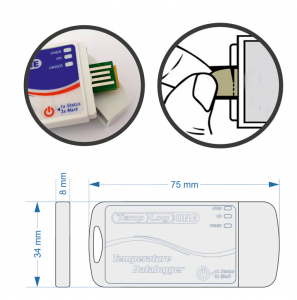
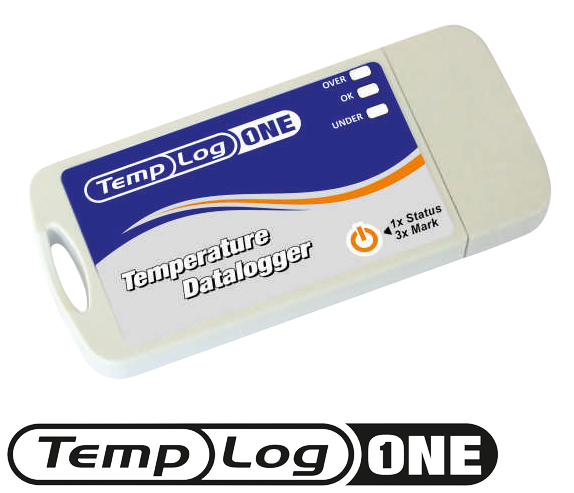
TemplogONE is a pre-programmed ambient temperature recorder.
It is specially produced to record temperature measurement during the distribution of heat sensitive products such as vegetables, fruits, seafood, meat and medicines.
With the built-in sensor, it records the ambient temperature at the right time with accurate precision.
Small size, with its TEAR AND USE feature that allows for fast operation and is very easy to use with built-in USB port.
After device completes its measuring process, when you connect to your computer with the analysis program after reviewing the data, The data can also be sent to our servers by clicking the Send To Web button when needed.
User-adjustable recording and alarm value
Special calibration certificate for each device
Ease of Use
It is extremely easy to start the registration process and report the Recording.
Cloud storage
All device data can be stored by users in a cloud Environment.
CalIbratIon CertIfIcate
Each device is equipped with a special calibration certificate and can be downloaded via the System.
HIgh SecurIty
The data inside the device cannot be changed externally.
CustomIzable
Alarm and recording intervals can be changed by the User.
Advanced reportIng
PDF, Excel, Graphical and Table format can be used for reporting in desired date range.
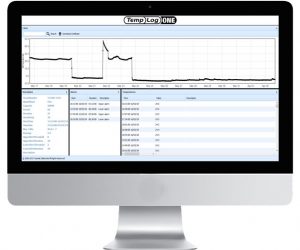
Data sent to the cloud can be quickly shared with other users through the www.templogone.net site.
How to use.?
Installation of Analysis program
By entering www.templogone.com you can download analysis program to your computer by clicking on the download link then the EXE icon on the opening page
You can start the setup process by double clicking on the downloaded File
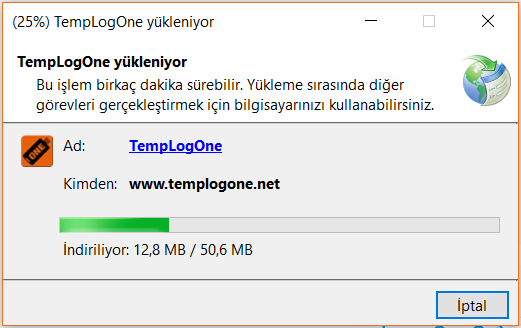
The program will open automatically after installation
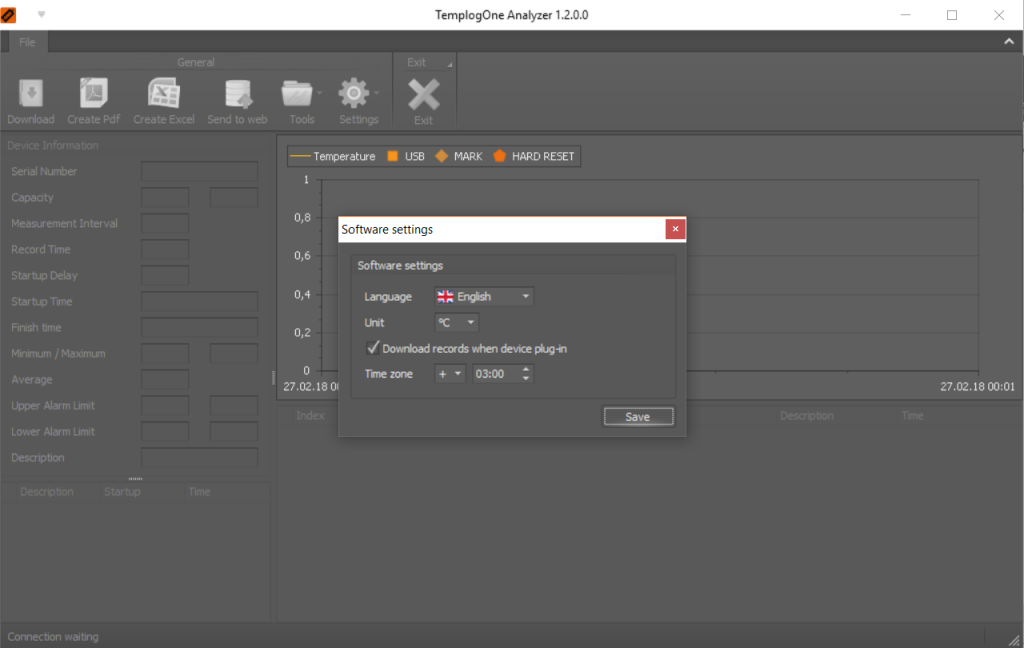
The first pop-up display includes language options, temperature unit setting, and time zone settings.
These settings can be changed at any time under the SETTINGS menu.
Changing device factory settings
Insert the non-activated device into your computer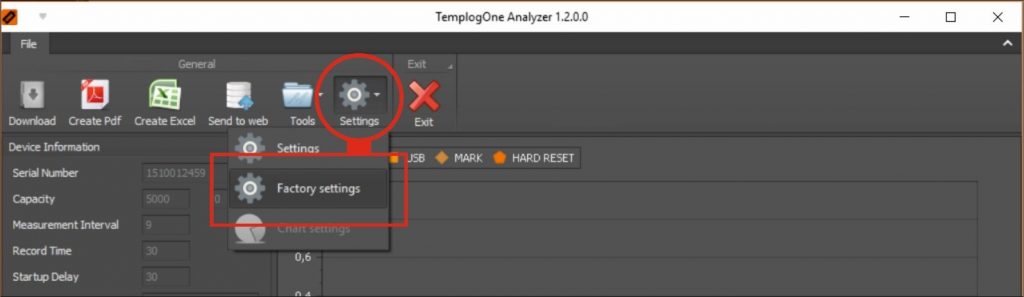
Click the Setting icon, then the FACTORY settings icon from the Program menu
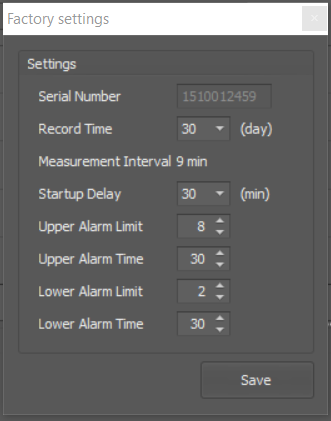
Set the device recording time, lower and upper temperature limits, start and alarm delay time according to your needs on the opening window. Save settings to the device by pressing the Save Key.
Operating device
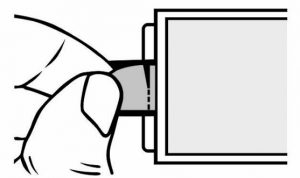
You can run the device by tearing the START pad in the back of the Device.
When the pad is torn, the device will start recording. The LEDs on the front of the device blink 3 times to indicate that the recording process has begun.
Quick ALARM control over the device and placing an end-of-shipment mark
The alarm status of the activated and recorded device can be controlled by the LEDs on the Device.
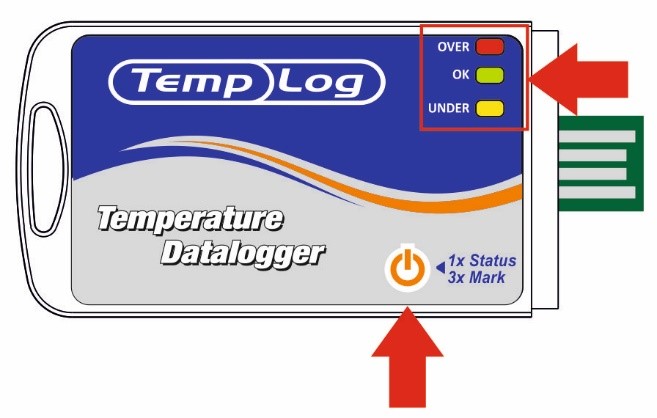
Press the button 1 time, the right top of the LEDs will be instantaneously on according to the alarm status.
Red LED: High temperature Alarm condition occurring
Green LED: No alarms occurred
Yellow LED: Low temperature alarm status is occurring.
Red and Yellow LED: indicates a high and low temperature alarm has occurred.
End of shipment mark (MARK )
Pressing the button 3 times consecutively on the device will be placed the end of the shipment. In the meantime, all LED lights will be lit at the same time for a short time. The end of shipment mark will be visible in the device report when the device is inserted into the Computer.
Reading data in the analysis program
To analyze the data in the device, plug the device from USB to your computer.
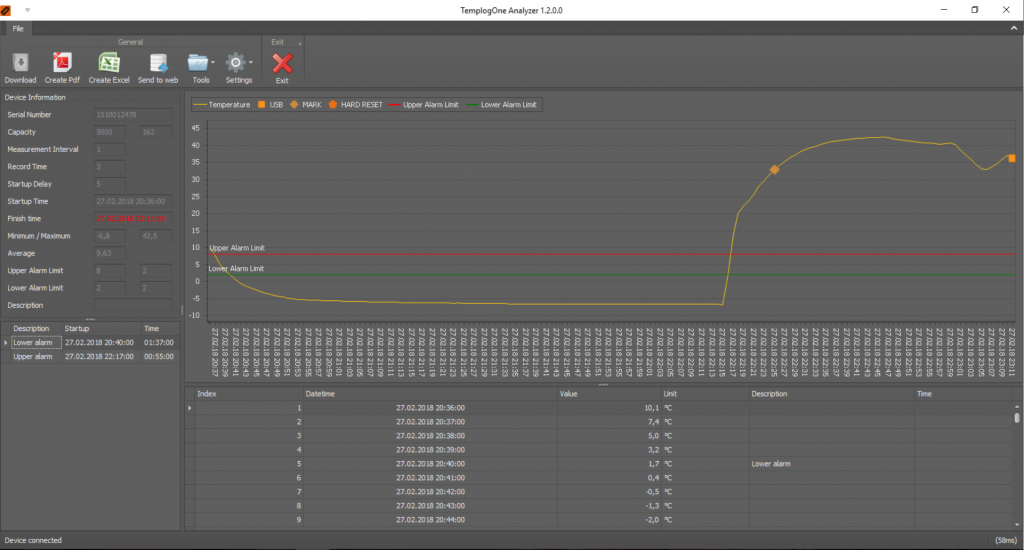
The software will automatically read the device and display the recorded data on the Screen.
The software consists mainly of 3 parts.
Device Information Display
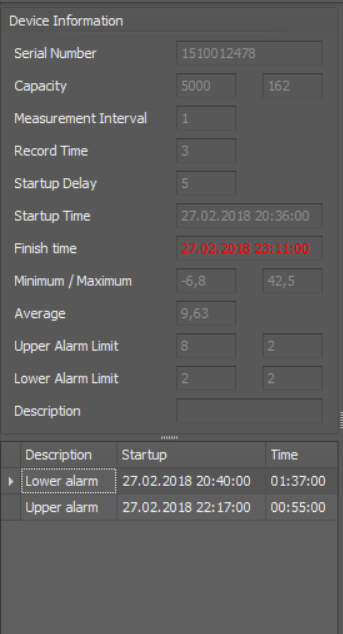
This screen has basic data about the Device.
Graphic display
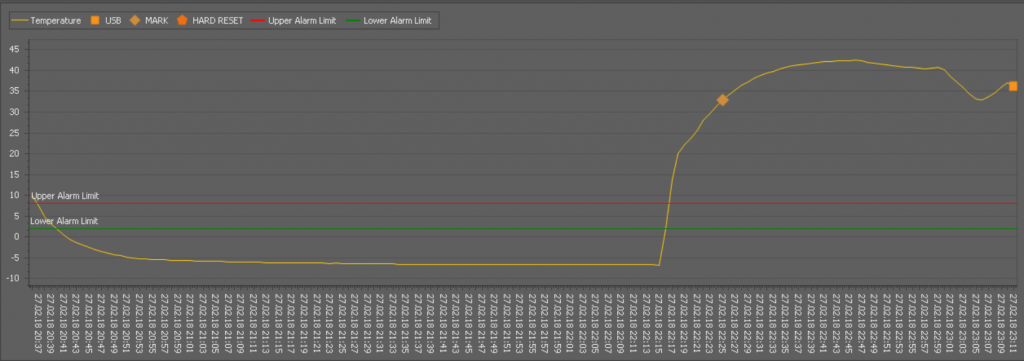
The data recorded on this screen is graphically displayed on the date Chart. If device is plugged into the USB before or end of shipment marks can be seen on this Screen.
Data List Screen
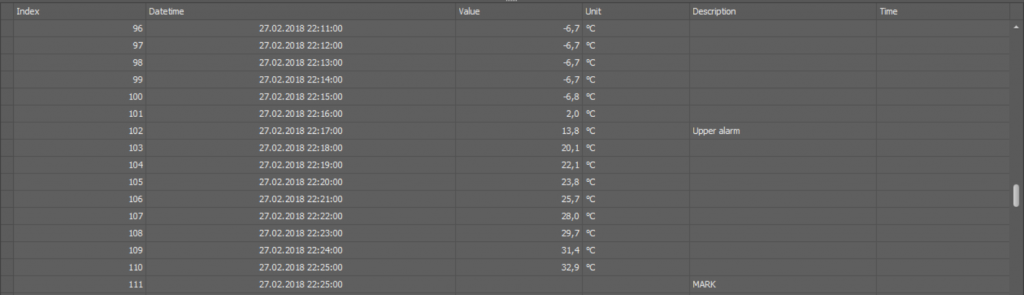
On this screen, the data in the device is displayed as a list with chronology. Alarm dates, end-of-shipment marks, and earlier USB-to-hang dates can be seen on this Screen.
EXCEL and PDF report creation
To import Excel and PDF report, you will use excel and PDF buttons in program menu while the device is plugged into the computer.
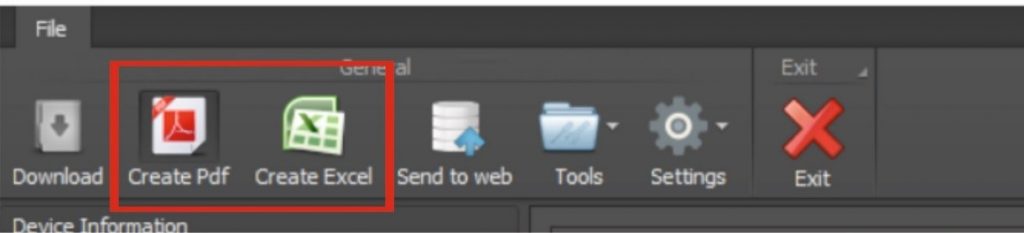
The data in the device is saved to the computer by clicking the preferred report Button.
Saving and reading data to a computer
To save the data in the device to the computer, click the Save File button under the TOOLS menu.
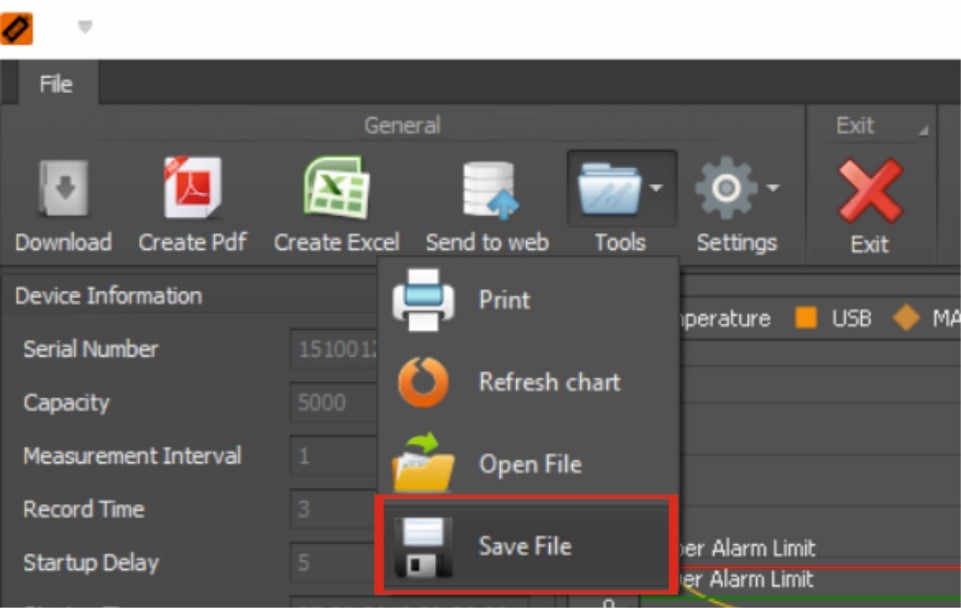
Data saved to the computer can be reviewed any time even if the device is not plugged into the computer.
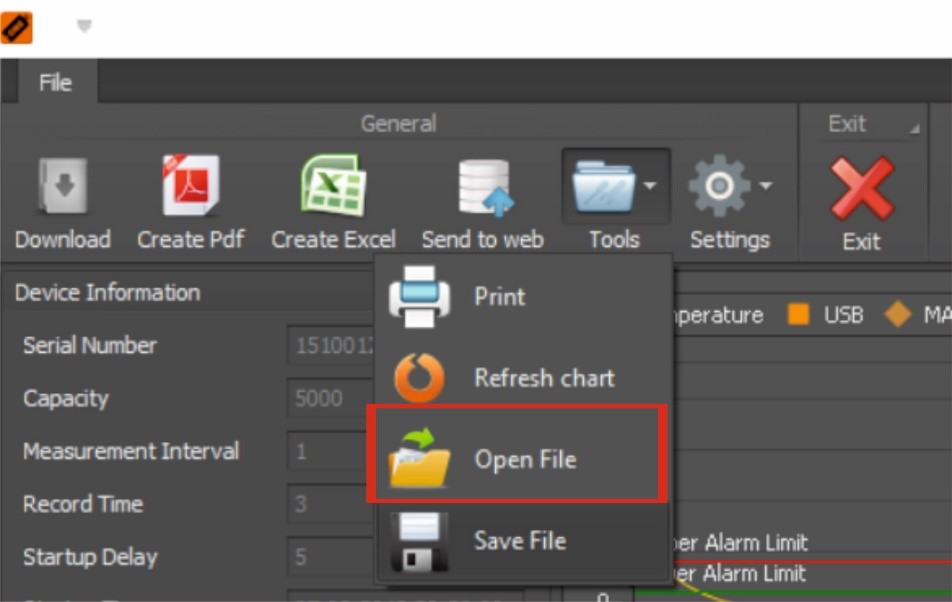
The data saved to the computer can be opened again by clicking on the OPEN file button under the TOOLS menu.
Sending data to the Web and reading from the Web
The data in the device can be sent to the Web environment and can be shared quickly with different users.
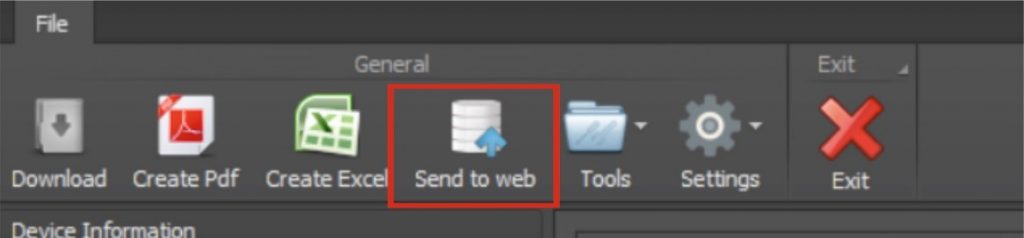
Click the Send To Web button to send the data to the Web. The data within the device will be sent to the Templogone cloud storage space.
Data review from the WEB
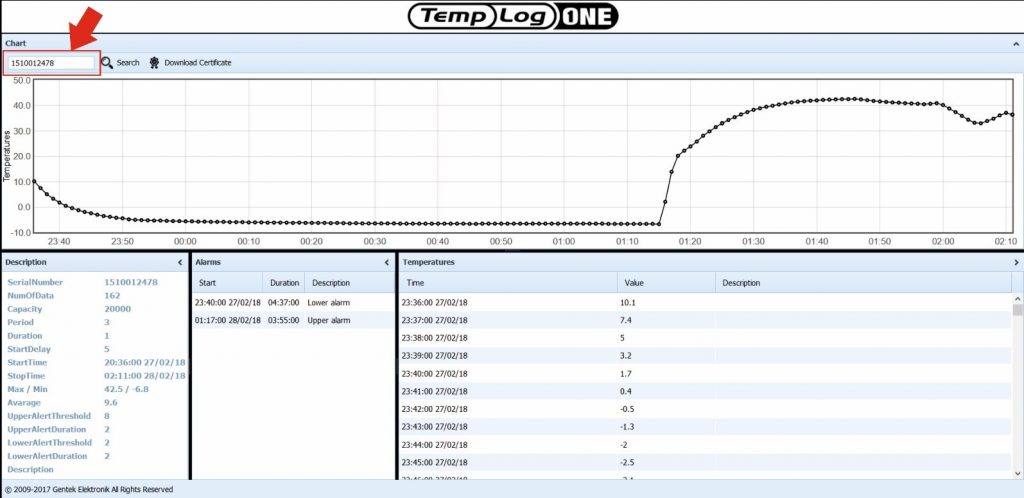
To examine data that is being reported to the cloud www.templogone.net Search for the device serial number by logging in to the search box.
The data in the cloud will be displayed on the website as Follows.
Downloading Calibration Certificate
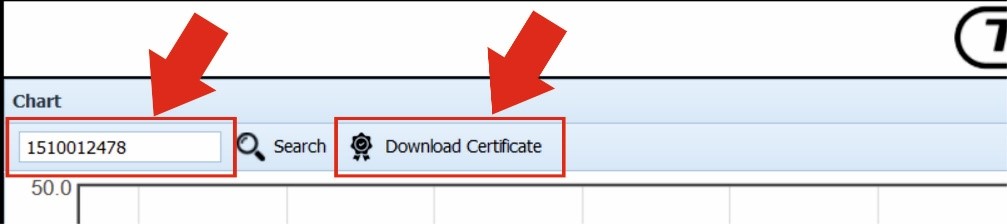
To download the Device-specific calibration certificate from www.templogone.net, Login to the Site.
Enter the device serial number in the Search box and click the DOWNLOAD button.
The calibration certificate will automatically be downloaded to your computer in PDF format.
FAQ Frequently Asked Questions
• What is the expiration date of the device?
Recommended to be used within 12 months after production date.
• What is the barcode behind the device?
The barcode on the back of the device is the specific serial number. This number can be seen from the Www.templogone.net site if the device has data from the Web.
• Does the device have a calibration certificate?
Each device has a special calibration Certificate. This document can be downloaded by typing the serial number on the back of the device via the www.templogone.net Site.
• When the device is plugged into the computer, is it stops?
The recording process does not end even if the device that has worked is plugged into the computer, When the device is plugged into the computer, the data that was received until that day is displayed. When it is removed again, the recording process continues throughout the device registration life.
• Can I change the device settings?
The recording time and alarm values of the device may be changed by the user in order to be unoperated.